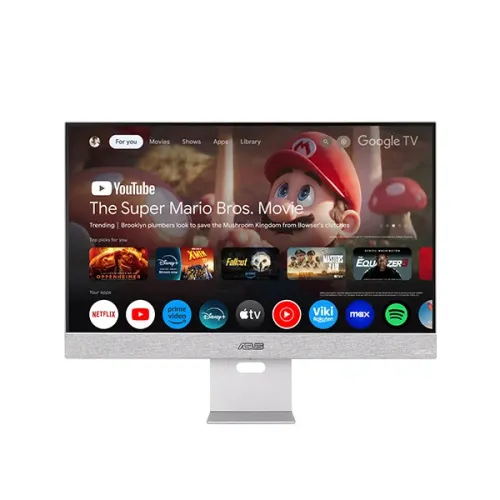
ASUS ZenScreen Smart Monitor MS27UC
The ASUS ZenScreen Smart Monitor MS27UC combines a 27-inch 4K display with a built-in smart platform, wireless features, a USB-C connection for a compatible computer, and integrated speakers. Its defining feature is the way it can serve two roles from one screen: it can display a wired PC or laptop signal, and it can run its own Android 11 based smart-monitor software for streaming, browsing, and supported Google services. That combination can suit a shared home workspace or an entertainment desk where the user wants a monitor for computer work and a screen for video without treating those as separate displays. Its identity should be kept precise: MS27UC is the model; 27 inches is the panel size; 3840 × 2160 is the native resolution; and the refresh rate is 60Hz. These are manufacturer specifications, not estimates based on a retailer headline.
27-inch 4K IPS display
The panel measures 27 inches diagonally and uses IPS technology with LED backlighting. Its native pixel grid is 3840 × 2160, commonly called 4K UHD, in a 16:9 format. ASUS lists a pixel pitch of 0.155 mm and a viewing area of approximately 596.73 × 335.66 mm. On a 27-inch screen, that resolution provides a dense desktop for documents, editing timelines, browser windows, and high-resolution video. The actual workspace a person sees depends on operating-system scaling and application settings: a 4K panel can show fine detail, while text and interface elements may be scaled larger for comfortable reading. IPS and 178-degree horizontal and vertical viewing angles are specified for the screen. An anti-glare surface helps limit reflections from ordinary room lighting, although it cannot eliminate every reflection or replace sensible screen placement.
The published refresh rate is up to 60Hz, with a 5ms gray-to-gray response-time specification. Those figures describe a standard 60Hz display experience, rather than a high-refresh gaming monitor. The monitor can be used for everyday computer tasks, video, and casual play, but shoppers seeking a 120Hz or faster panel should compare models built for that purpose. ASUS lists 99% sRGB color-space coverage and 1.0737 billion displayed colors using a 10-bit specification. Coverage figures are manufacturer claims; they do not by themselves describe factory calibration, unit-to-unit variation, or measured color accuracy in a particular workflow. For color-critical work, users should check calibration requirements and the color-management support of their computer and software.
Brightness and HDR formats
ASUS specifies 350 cd/m² typical brightness and 400 cd/m² peak HDR brightness. These values have different meanings: the typical figure is the normal brightness rating, while the higher figure is stated for HDR peak conditions. The monitor supports HDR10, HDR10+, HLG, and VESA DisplayHDR 400 according to its specification page. HDR playback also depends on the source, application, content, connection, and selected settings. The 1000:1 typical contrast ratio is the relevant native contrast rating; the much larger HDR maximum contrast figure shown in specifications describes a dynamic HDR rating and should not be read as the panel's ordinary native contrast. This distinction helps set realistic expectations when comparing the product with televisions or displays that use a different backlight design.
For general use, a 27-inch 4K screen gives room to keep reference material and a working document visible together, or to view a detailed image without needing a larger desk footprint. At native 3840 × 2160 resolution, supported devices can send a 4K signal over HDMI, DisplayPort, or USB-C DisplayPort Alt Mode. The actual supported mode can depend on the connected graphics device, cable, operating system, and input selection. If text appears too small, display scaling can enlarge interface elements while preserving the panel's high-resolution output. If a connected device is configured to a lower resolution, the monitor can still display that signal, but it will not contain the same source detail as native 4K.
Built-in Google TV smart functions
The MS27UC runs an Android 11 version smart platform and is presented by ASUS as a Google TV smart monitor. It includes embedded Wi-Fi, voice control, wireless projection, Google Home device support, and Google Cast or Miracast capabilities described by ASUS. Users can access supported streaming services and compatible applications directly on the monitor, subject to service availability, account requirements, network quality, and local app support. Google TV recommendations, profiles, and search are platform functions; a particular subscription or streaming catalogue is not included simply because the monitor has smart functionality. Availability can differ by country and may change over time, so the apps currently supported in Bangladesh should be confirmed on the device or with the seller before purchase.
ASUS lists Multi View for showing two source experiences at once, Multi Control for supported device control, HDMI Reverse Control, and Multi-Platform Streamer Plus. These functions are intended to help the monitor work across a mixture of connected devices and smart services. Their exact behavior depends on source compatibility, setup, connected devices, and current software. ASUS also describes the ability to browse the web and use Google Workspace services through the built-in platform. Work documents and cloud services still require the user's own accounts, network access, compatible applications, and appropriate security practices. This is not the same as saying that a desktop operating system or a complete PC is built into the monitor.
Wireless projection can be useful when a compatible phone or computer needs to share a presentation, photo, or video without connecting a display cable. Wi-Fi is built in, while Bluetooth is described in regional retailer material; check the current regional product sheet for the particular wireless functions and accessory pairing supported. A wired HDMI, DisplayPort, or USB-C connection remains available for computers and other compatible sources. Multi-view and input switching can help when the user moves between a computer and smart content, though the layout and controls should be checked in the on-screen menus. The monitor's built-in software receives support and updates under ASUS's stated policy; the tech-spec page lists a three-year product security update period ending 31 December 2026, so buyers should review ASUS's current support notices for the latest status.
USB-C, video inputs, and USB hub
The monitor includes one HDMI 2.0 input, one DisplayPort 1.4 input, and one USB-C port with DisplayPort Alt Mode. ASUS rates USB-C Power Delivery at up to 90W. A compatible laptop can therefore send video through USB-C and receive power from the same cable, which can reduce the number of connections at a desk. The 90W figure is an upper rating; actual charging depends on the host device, its charging profile, cable capability, and the monitor's operating conditions. Some computers require more than 90W or do not support video over USB-C, in which case a separate power adapter or another video connection may be needed. Confirm the laptop's USB-C capabilities before choosing this as a one-cable docking arrangement.
Two USB 2.0 Type-A hub ports are listed for downstream devices. The monitor also has an earphone jack for private listening or an external audio connection. The ports are not interchangeable: HDMI and DisplayPort are dedicated video inputs; the USB-C input carries DisplayPort Alt Mode and USB Power Delivery; and the two USB-A ports are hub connections. The standard specifications do not describe the USB-A ports as high-speed USB 3.x ports, so they should be represented as USB 2.0 rather than silently upgraded in a product listing. Users can connect compatible low-bandwidth accessories through the hub, while data speed and device power remain subject to USB 2.0 limits and the connected host path.
For a computer connected through DisplayPort or HDMI, the monitor can receive video and sound over the selected digital connection where the source supports it. USB-C can carry video and power in a single cable for a compatible device. The manual and product specifications identify these input types, but they do not establish that every computer or phone will automatically provide all features through one cable. A buyer should check whether the source has a video-capable USB-C port, supports DisplayPort Alt Mode, and can use USB Power Delivery at the required level. For older systems, a separate HDMI or DisplayPort cable may be the more direct setup. Cable inclusion varies by regional package and should be confirmed with the Bangladesh seller.
Harman Kardon audio
Two built-in 5W speakers are specified, with audio technology by Harman Kardon. This gives the monitor an audio option for streaming, video calls, presentations, and everyday media without requiring external speakers for every use. The earphone output provides another listening route. Speaker wattage describes rated output, not a guarantee of room-filling volume, bass response, or sound quality in every environment. Placement, content, settings, and room acoustics all affect the result. Users who need dedicated music production, powerful low-frequency response, or more precise monitoring should consider separate audio equipment. The value of the built-in system is convenience for common screen-based listening and the ability to keep a compact desk setup.
ASUS's product announcement highlights the front-facing Harman Kardon-certified speakers and positions them alongside the built-in smart platform. This is relevant because smart viewing can be used without an external computer: streaming audio and video can play through the monitor's own system. A user can also choose headphones through the audio jack when a quieter listening setup is preferable. The exact sound controls and audio presets should be reviewed in the on-screen menu. This description does not infer a particular subwoofer, surround-sound channel count, microphone, or audio codec beyond what ASUS lists. Retail descriptions sometimes embellish speaker performance; the dependable specification here is two 5W speakers with Harman Kardon audio branding.
Stand, mounting, and physical fit
The supplied stand offers 100 mm of height adjustment and a tilt range from -5° to +18° on ASUS's current technical specification page. This allows a user to raise or lower the display and angle it toward the seated viewing position. The stand's listed adjustments do not include swivel or portrait pivot, so those movements should not be promised. For an articulated arm or wall bracket, the official VESA mounting pattern is 100 × 100 mm. The product attribute that says “00x100mm” is a transcription error; the documented size is 100 × 100 mm. The selected mount must also be rated for the display's mass and should use the correct fasteners.
ASUS gives an estimated dimension with the stand of 61.35 × 50.91 × 17.0 cm (width × height × depth). Without the stand, the listed approximate size is 61.3 × 39.0 × 4.6 cm. These figures help check a desk, shelf, or wall location before delivery. The base footprint, cable routing, nearby wall clearance, and the height of the viewing surface can matter as much as the panel width. ASUS's press information mentions a cable-management feature and storage at the back of the monitor for small items such as the remote; package and regional design details can vary. Measure the full setup area rather than relying on the diagonal size alone.
ASUS lists an estimated net weight of 6.0 kg with the stand and 4.8 kg without it, with regional variation noted on the specification page. The carton is listed at an estimated gross weight of 8.8 kg. The product can be mounted using a compatible 100 × 100 mm VESA mount if the stand is not used. When moving or installing the monitor, use a stable support and follow the handling instructions in the ASUS manual. Do not hang headphones or attach unapproved objects to the display; ASUS specifically cautions that such attachments can reduce the product's lifespan. Keep ventilation and cable access in mind when placing it close to a wall or inside a desk enclosure.
Eye-care and image controls
The technical specification lists Flicker-free technology, Low Blue Light, four color-temperature modes, six-axis color adjustment for red, green, blue, cyan, magenta, and yellow, and gamma settings of 2.0, 2.1, 2.2, 2.3, and 2.4. ASUS also lists TÜV Low Blue Light and TÜV Flicker-free certifications. These are display features designed to provide adjustment options; they are not medical claims and cannot guarantee that a particular user will avoid eye fatigue. Appropriate brightness, viewing distance, breaks, room lighting, and posture remain important. The anti-glare screen can help with reflections, and the height-adjustable stand can help position the display, but users should tune the setup to their own environment.
HDCP 2.2 support is specified. It is relevant to protected digital video content when the source, software, and connection all support the same protection requirements. The monitor accepts digital signals over HDMI and DisplayPort, with the published vertical frequency range reaching 40–60Hz for those inputs. A device's ability to output a particular resolution and refresh combination may depend on its graphics hardware, cable, and configuration. If a protected stream fails, the source chain should be checked end to end rather than assuming that the display alone is responsible. ASUS's manual provides additional operation, input, and troubleshooting guidance for setup.
Power and operating values
The monitor uses a 100–240V AC, 50/60Hz supply. ASUS lists power consumption below 30W, power-saving consumption below 0.5W, and power-off consumption below 0.3W on its product specification page. The English manual presents a power-on value below 26W, which is a regional or document-version difference from the current webpage's broader “less than 30W” statement. Both figures are upper-limit claims rather than a measurement of a particular user's setup. Actual draw can depend on screen brightness, selected mode, attached USB-C device, smart functions, and operating state. Use the bundled power cord and a properly grounded outlet that meets the local electrical requirements.
USB-C Power Delivery can provide up to 90W to a compatible connected device, while the monitor's own display consumption is listed separately. Buyers should not add the monitor's consumption and the USB-C rating as if they were a single fixed figure; system power depends on how the product is being used and what is connected. For a laptop, compare the computer's required adapter rating with the monitor's maximum USB-C output. A performance laptop that expects a larger charger may run at reduced charging speed or continue to rely on its own power supply. The monitor does not replace a computer's charging adapter in every configuration.
In-box items and local warranty
ASUS lists a warranty card, USB-C cable, remote controller, quick-start guide, power cord, HDMI cable, DisplayPort cable, and two AAA batteries among possible accessories. The manufacturer marks accessories as region-dependent, so the package supplied in Bangladesh may not contain every item in the global list. Confirm included cable types and the remote with the specific seller before purchase if those items matter to the planned setup. The monitor's package should also be checked on delivery. ASUS's Bangladesh retailers list a three-year warranty, while the actual warranty provider, service process, exclusions, and box requirements are seller or distributor terms. Keep the invoice and packaging and verify the written warranty conditions with the shop.
Displayed Bangladesh prices are snapshots, not a permanent offer. Direct retailer pages checked for this product have shown changing values around the catalog's existing ৳80,000 listing, with stock and regular prices differing by seller and date. One seller page can show a discounted selling price while another presents a different sale price or an older regular price. Confirm final price, stock, delivery terms, local warranty, and package contents at checkout or with the retailer. The existing variant MSRP is left as cataloged; observed seller offers are evidence for the date checked and are not a promise that a seller will honor the same figure later.
Who this smart monitor may suit
The MS27UC may be a practical fit for someone who wants a 27-inch 4K computer display and also uses streaming or smart services from the monitor itself. A laptop user with a compatible USB-C port can simplify desk wiring through video and up to 90W charging on one cable. A desktop user can use HDMI or DisplayPort and keep the USB hub and headphone connection available. A household may use the integrated Google TV experience for supported entertainment apps, then switch back to a computer input for work. The height- and tilt-adjustable stand allows basic positioning, and the VESA pattern gives another mounting option. These are use cases enabled by the documented features; the product does not include a computer, laptop, streaming subscription, or external mount.
It may be less suitable for someone whose main requirement is very high refresh gaming, extensive stand movement, built-in webcam hardware, or a workstation dock with multiple high-speed USB data ports. ASUS specifies 60Hz, height and tilt adjustment, no listed pivot or swivel, and two USB 2.0 Type-A hub ports. The USB-C connection offers substantial charging for compatible devices, but some laptops need more than 90W. A user choosing the monitor for professional color work should also account for the 99% sRGB coverage claim and verify calibration for their own workflow rather than treating gamut coverage as a complete accuracy guarantee. Matching the monitor to actual work avoids expecting a feature that the published specification does not promise.
Setup checklist
Before connecting a computer, choose the input that matches the device: HDMI 2.0, DisplayPort 1.4, or USB-C with DisplayPort Alt Mode. For USB-C charging, use a cable and source that support the required video and Power Delivery functions. Select the input in the monitor's controls, then set the computer to a supported resolution and refresh rate. Native 3840 × 2160 at up to 60Hz is the key display target; the actual mode depends on the computer and connection. If using the built-in smart interface, connect Wi-Fi, complete the on-device account and service setup, and check which apps are available locally. Wireless casting requires a compatible source and network configuration.
Position the panel at a comfortable height, use the stand's height and tilt range, or install a compatible 100 × 100 mm VESA bracket. Route power and signal cables so they are not strained, and leave enough space for the rear connections. Start with a moderate brightness setting appropriate to room light, then choose a color-temperature and eye-care mode that feels comfortable. For sound, select the monitor's audio output on the source or smart interface and adjust volume; use the headphone jack if needed. If a laptop does not charge over USB-C, confirm that the laptop's USB-C port supports Power Delivery and DisplayPort Alt Mode, check the cable, and verify the monitor input and power settings.