BenQ PD2706QN overview
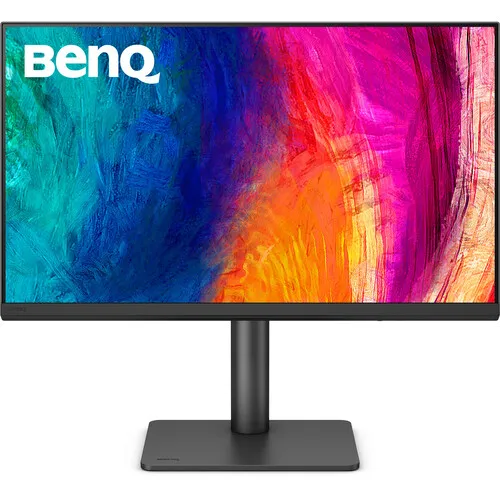
The BenQ PD2706QN is a 27-inch DesignVue professional monitor with a QHD IPS panel. BenQ specifies 2560 × 1440 resolution, a 100Hz refresh rate and a 5ms grey-to-grey response time. The display combines a professional color workflow with everyday productivity features, including a Nano Matte screen coating, USB-C connectivity, KVM and a height-adjustable stand. Its manufacturer specifications list 100% sRGB, 100% Rec.709 and 95% P3 color gamut, together with a factory calibration report and average Delta E of 2 or less. The monitor includes one HDMI 2.0 input, one DisplayPort 1.4, USB-C with video/data and 90W Power Delivery, USB hub ports and a USB-C MST output. Confirm the exact model on the box and review local warranty terms before ordering.
QHD resolution and 27-inch workspace
The 2560 × 1440 QHD resolution provides a broad 16:9 desktop on the 27-inch IPS panel. BenQ lists 109 pixels per inch, a 0.233mm pixel pitch and 178-degree horizontal and vertical viewing angles. This gives room for design canvases, document windows, timelines and browser panels without the GPU workload of a 4K display. Fine text and interface scale depend on viewing distance and personal preference, so choose an operating-system scaling setting that remains comfortable. The Nano Matte coating is designed to reduce reflections and maintain a clear image in bright work areas, though it cannot eliminate every reflection from windows or overhead lights. QHD is below 4K, so editors reviewing native 4K material may need to zoom or use an additional reference display for pixel-level checks.
100Hz motion and daily performance
BenQ lists a 100Hz refresh rate and 5ms GTG response time. The 100Hz mode can make pointer movement, scrolling and compatible video feel smoother than a conventional 60Hz monitor. It is not a high-refresh esports display, and the visual result depends on the computer, cable, application and selected output settings. A 5ms GTG number is a manufacturer rating measured under specified conditions rather than a guarantee that every pixel transition takes the same time. In ordinary office, design and media work, the refresh rate is one part of the overall experience alongside resolution, color mode and brightness. If 100Hz is unavailable after connecting the computer, check the graphics output, selected display mode, cable capability and operating-system refresh setting.
Color reproduction and factory calibration
BenQ lists 100% sRGB, 100% Rec.709 and 95% P3 color gamut. The specification also includes a factory calibration report and average Delta E of 2 or less, plus Calman Verified, Pantone Validated and Pantone SkinTone validation. These credentials make the PD2706QN relevant to design, photography, illustration and video workflows that use supported color spaces. They do not remove the need for a color-managed process: configure the correct color profile, software and working space, and recalibrate when a project requires a known target. Gamut coverage describes the range of colors the panel can reproduce; it is not the same as accuracy in every picture mode. BenQ provides multiple modes such as sRGB, Rec.709, DCI-P3, Display P3, CAD/CAM, Animation and Darkroom to support different kinds of work.
HDR10 and display brightness
The official PD2706QN specification separates 350 nits typical brightness from 400 nits peak HDR brightness and lists HDR10 support. The native contrast ratio is 1000:1, with 16.7 million display colors. HDR playback depends on the source device, content, application, operating-system configuration and picture mode. A peak brightness rating does not by itself describe black level, local dimming or the appearance of every HDR scene. For color work, select the mode and color space required by the project rather than assuming HDR mode is appropriate for every task. If a media workflow needs a specific HDR monitoring standard, compare its brightness and contrast requirements with the panel’s exact specification. The catalog description identifies HDR10 and peak brightness without suggesting that the display is a reference mastering monitor.
USB-C, video inputs and one-cable setup
The upstream USB-C connection supports DisplayPort Alt Mode, data and up to 90W Power Delivery. A compatible laptop can send video and data while receiving power through one cable, which can simplify a desk. Check that the computer’s USB-C port supports display output and that its power demand is suitable for 90W delivery; some high-performance laptops need their own adapter under heavy load. The monitor also provides one HDMI 2.0 input, one DisplayPort 1.4 input, a headphone jack and a USB-C output with MST support. BenQ lists USB-C as the all-in-one connection. The included signal cable can vary by region, so check the local box contents if you need a specific cable. Display resolution and refresh rate still depend on the host, connection and configuration.
KVM, USB hub and daisy chaining
BenQ includes a KVM switch so compatible computers can share connected keyboard and mouse peripherals through the monitor’s USB hub. The USB-C MST output supports a daisy-chain workflow with a compatible second monitor and host system. These functions require the correct upstream connections and supported graphics/USB behavior; they do not make every laptop or monitor configuration interchangeable. The downstream hub has two USB-A Gen 1 ports rated at up to 4.5W charging, one USB-A Gen 1 port rated at 7.5W and one USB-C Gen 1 port rated at 7.5W. The upstream 90W USB-C port has a different role and power rating from the downstream ports. Connect the upstream path first, then verify device switching, data and display output in the monitor menu and computer settings.
Stand adjustments and mounting
The supplied stand supports 115mm height adjustment, tilt from −5° to +20°, swivel of 15 degrees in either direction and 90-degree pivot. That range can help position the screen for seated or standing work and rotate it to portrait orientation for long documents or vertical layouts. The display also supports 100 × 100mm VESA mounting. BenQ estimates the monitor at 614mm wide, 429.97–544.96mm high and 220.2mm deep with the stand; without the base it is listed at 614 × 368 × 80.9mm. Estimated weight is 9.32kg with the stand and 6.42kg without the base. Check the arm’s weight rating and mounting hardware before installation, and leave clearance for cables when pivoting the display.
Audio, eye care and power
The monitor has two built-in 3W speakers and a headphone jack for basic desktop audio. External speakers may suit users who need fuller bass, higher volume or room coverage. BenQ lists flicker-free operation, Low Blue Light and a TÜV Reflection Free certificate. These are comfort features rather than substitutes for appropriate lighting, readable text size, a suitable viewing distance and regular breaks. Normal power consumption is listed at 29W, maximum at 200W and sleep-mode consumption below 0.5W. The monitor uses a built-in power supply and accepts 100–240V. Actual power varies with brightness, connected USB devices, audio and operating mode. Keep the monitor ventilation area clear and use the supplied compatible power cord. Confirm local accessory contents, since BenQ notes that cables may vary by region.
Creative modes and software tools
BenQ lists several professional modes and utilities: DCI-P3, Display P3, Rec.709, sRGB, HDR, M-book, black-and-white, DICOM, CAD/CAM, Animation and Darkroom. KVM, DualView, Auto Pivot, Uniformity Technology and ICCsync are also listed. Display Pilot 2, Palette Master Ultimate, Display ColorTalk and Display Quickit software are supported according to the specification page. These tools can help coordinate picture modes, color profiles, screen layouts and connected computers, but the exact workflow depends on the operating system and installed software version. Download utilities and firmware from BenQ’s official support resources for the correct model. For regulated medical or other specialized work, DICOM mode should not be treated as a substitute for the required certified display and review process.
Bangladesh price and warranty
Four public Bangladesh listings were checked on 6 November 2026. Skyland showed ৳47,799, Techland and Tech Minds showed ৳49,999, and Ryans and Apple Gadgets listed ৳50,000. The observed range in the sampled listings was therefore ৳47,799–৳50,000. These are changing seller prices and market references, not BiponiBD store offers. The product’s existing catalog MSRP of ৳50,000 and three-year catalog warranty remain unchanged. Warranty duration, issuer and claim conditions can depend on the seller, distributor, invoice and serial number. Before purchase, ask for written warranty coverage, current stock, delivery terms, return/dead-pixel policy and confirmation that the model is PD2706QN rather than PD2706U or another related DesignVue model.
Who should consider the PD2706QN
The PD2706QN may suit graphic designers, photographers, developers, video editors and office users who value color modes, USB-C laptop connectivity and a flexible stand. Its QHD workspace and 100Hz refresh rate can serve mixed creative and everyday workloads. The built-in KVM and USB hub are useful when moving between compatible computers, while USB-C MST can support a daisy-chain arrangement with suitable hardware. Users who need 4K pixel-level review, 120Hz or higher gaming, stronger room audio or higher HDR brightness should compare those requirements with this model’s QHD resolution, 100Hz ceiling, 3W × 2 speakers and 400-nit HDR peak. The 90W USB-C output is attractive for many laptops, but the host’s charging requirement and supported connection mode should be checked before relying on a single cable.
Setup and buying checklist
Before ordering, verify PD2706QN on the product label, the current seller price, local stock, written warranty and return policy. Check whether the package includes the USB-C or DisplayPort cable needed for your computer. For a one-cable laptop setup, confirm USB-C DisplayPort Alt Mode and 90W power requirements. For a daisy chain, verify MST support on the host GPU and second display. Set QHD at 100Hz in the operating system, connect the upstream USB path for KVM and hub use, then select the matching color mode and ICC profile for your task. Confirm the stand’s swivel, tilt, height and pivot range before choosing a monitor arm. If color accuracy matters, keep the factory calibration report and use a managed workflow with periodic calibration. The market range is informational only; check the live BiponiBD offer separately.