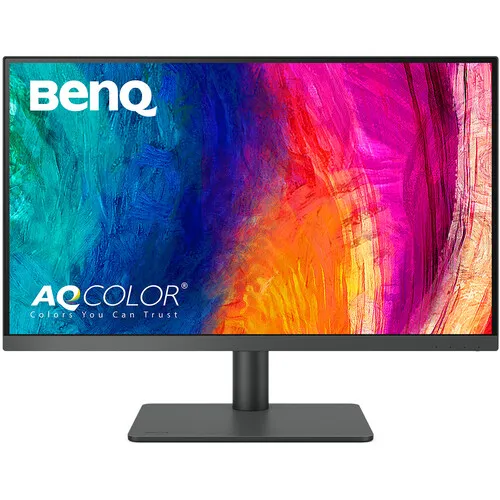
BenQ PD2706U at a glance
The BenQ PD2706U is a 27-inch professional 4K monitor built for designers, photographers, video editors and other users who need detailed workspace and broad color coverage. Its 3840 × 2160 IPS panel runs at 60Hz. BenQ describes factory color calibration and lists 100% sRGB, 100% Rec.709 and 95% P3 coverage. The monitor also combines USB-C docking, KVM, picture-in-picture, picture-by-picture and ergonomic stand functions.
This updated product entry identifies the exact PD2706U model, replaces the generic brand assignment with BenQ, and adds detailed product information based on the manufacturer page and local retailer specifications. Existing product ID, slug, category, status, variant SKU and catalog MSRP, warranty field, and image records are retained. Seller prices are kept as dated comparison observations rather than new store offers.
4K resolution and 27-inch workspace
The native 3840 × 2160 resolution places more image detail on the screen than a Full HD panel of similar size. That density can help inspect fine lines, crop photographs, arrange a timeline, compare design elements and keep several documents visible. A 16:9 aspect ratio works with common video and desktop content. IPS technology provides wide viewing angles, helping the image remain usable when the viewer is not directly centered.
High pixel density can make interface text and controls appear small at default scaling. Users can adjust operating-system scaling while keeping the native pixel resolution, then tune application zoom for individual tasks. A graphics output and cable capable of 4K at 60Hz are needed to get the full desktop mode. If an adapter, dock or switch is used, check its supported resolution and bandwidth as well.
Refresh rate and response
The PD2706U is a 60Hz monitor. This refresh rate is suited to typical design, office, browsing and video workflows, where image detail, color space and input flexibility can matter more than very high frame rates. The 5ms gray-to-gray response-time figure shown by retailers describes a pixel transition under a particular measurement method; it does not mean every color transition takes precisely the same time.
For users focused on competitive gaming or fast motion, a higher-refresh monitor may be a better fit. For editing, coding, illustration and general productivity, the 60Hz mode can provide a stable 4K work surface. Set the operating system to 3840 × 2160 at 60Hz when supported, and check the selected display input if the available mode differs.
Color gamut and calibration
BenQ states 100% sRGB, 100% Rec.709 and 95% P3 color coverage. Those spaces are relevant to web graphics, standard video and a broad range of creative content. BenQ also describes factory calibration with average Delta E at or below 3, giving creators a color-focused starting point. The results of any finished project still depend on the application, color profile, output target, room light and the display settings used during work.
Color coverage does not by itself guarantee a particular result across all units, brightness levels or viewing conditions. Photographers and designers with strict print or delivery requirements may use a compatible calibrator and a color-managed workflow. BenQ’s AQCOLOR tools and Display Pilot software support selected workflows, but availability and behavior depend on the operating system and connected calibrator. Keep the target color space consistent across display, application and export.
Creative display modes
The PD2706U includes specialized modes intended for different work. BenQ describes CAD/CAM mode for contrast in technical drawings, Animation mode for visibility in dark areas, Darkroom mode for lower-light work, ePaper mode for reading and DualView for comparing two display modes side by side. M-Book mode is intended to align display appearance with compatible Mac devices. These modes change how the image is presented; they do not replace checking the final output on its target device.
Display Pilot 2 and ICCsync are software features for supported computers. BenQ explains that ICCsync can synchronize ICC color profiles when the monitor mode changes, while Display Pilot 2 provides software controls. Some behaviors, including M-Book color alignment and keyboard brightness hotkeys, are specific to compatible Mac workflows. Confirm software support and permissions on the computer before planning a work process around them.
USB-C connection and laptop charging
A USB-C cable can carry video, data and up to 90W of power delivery when the connected computer supports the required DisplayPort Alt Mode and charging profile. This can reduce cable clutter on a laptop desk. A separate downstream USB-C port and USB-A hub connections can support peripherals. BenQ also describes compatibility with Thunderbolt 3 and Thunderbolt 4 devices through USB-C, while actual capabilities depend on the host and cable.
Charging capacity is a maximum and the laptop determines its power demand. Heavy workloads or larger workstations may require their own power adapter even while the monitor carries display and data. For a single-cable desk, confirm that the laptop USB-C port supports video output, use a capable cable, connect to the correct monitor port and check whether the attached accessories operate as expected.
KVM, PIP and PBP workflow
Built-in KVM lets users switch one keyboard and mouse between two connected systems. This is useful for a desk shared by a work laptop and desktop, or by a personal and production computer. For KVM operation, both computer video paths and the required USB connections need to be routed to the monitor. Hotkey Puck G2 can provide a physical control point for switching and commonly used settings.
PIP places one source in a smaller window over another source; PBP arranges two sources side by side. These modes can help compare images or view a second computer while keeping the main task visible. The monitor’s available layouts depend on input combinations and supported signal modes. Consult the manual for supported configurations and set each source to a resolution that works with the chosen split-screen layout.
Display inputs and accessory hub
Local product specifications list a DisplayPort 1.4 input, HDMI 2.0 input, USB-C video input, USB-C downstream connection, USB hub ports and audio output. This range accommodates desktop computers, laptops and common peripherals. A keyboard, mouse, storage device or other accessory can remain attached at the display when the upstream data link is connected to the intended computer. Port version and cable choice affect the available video mode.
A connection through HDMI or DisplayPort alone carries display signal but does not automatically provide USB hub data or laptop charging. USB-C is the relevant path for those combined functions when supported. If an accessory is missing, check the upstream connection, KVM selection, computer permissions and device manager before replacing hardware. Keep the manual nearby to identify each port and its intended use.
HDR claims and source interpretation
BenQ’s overview page promotes HDR400, and its product comparison table lists HDR10 and VESA DisplayHDR 400 for the PD2706U. The retailer tables inspected show HDR10. Those labels describe related but distinct HDR capabilities and standards, so they should not be collapsed into a single unsourced promise. In this listing, both claims are surfaced with their source distinction and buyers are encouraged to confirm exact certification details in the local manual or with BenQ.
Typical brightness in the retailer specification table is 350 nits, with a 400-nit HDR peak also listed. HDR playback depends on the content, operating system, application, signal path and monitor settings. A monitor’s HDR support does not imply the brightness or contrast performance of a high-end HDR reference display. For color-critical delivery, evaluate the intended mastering target and the final image on the equipment specified by the project.
Built-in sound and everyday use
Star Tech and Tech Land list two 2.5W built-in speakers. They can provide convenient audio for system alerts, meetings and casual video without adding another device to a compact desk. A headphone or audio connection is also listed by sellers. The speakers are integrated convenience features, not a substitute for dedicated near-field speakers when accurate mixing, low-frequency response or room-filling volume matters.
The monitor’s audio behavior depends on the selected input, computer output settings and any connected headset. Choose the BenQ display as the active output device when appropriate. For a video call, confirm the microphone separately because speaker specifications do not indicate that a microphone is built in. External audio equipment can be connected to the computer or supported monitor output as required by the setup.
Stand, portrait orientation and mounting
The supplied stand provides tilt from -5° to +20°, swivel of 15° in each direction, 90° pivot and 110mm of height adjustment according to retailer specifications. These controls can help position the top of the image near eye level, turn the screen toward a nearby collaborator or switch to portrait orientation for long pages and code. BenQ also describes included Hotkey Puck G2 control for convenient access to display settings.
A 100 × 100mm VESA pattern is listed by local sellers. A compatible arm can free desk space or increase positioning range. Verify mount weight capacity, screw fit, desk stability and clearance before installation. Allow enough cable slack for height and pivot movement, and avoid twisting the cable when rotating the display. Keep the original stand and hardware if the monitor may later return to a standard desk configuration.
Eye comfort and extended sessions
BenQ describes low-blue-light and flicker-free eye-care technologies and identifies TÜV Rheinland certification on the product page. These options are intended to support comfortable viewing during longer sessions. Individual comfort still varies. Adjust brightness to the room, use text scaling that does not require leaning forward, take regular visual breaks and position the screen to avoid strong reflections. No single display setting removes the need for a comfortable workspace.
The anti-glare panel finish helps reduce reflections, while the 178° viewing-angle specification supports off-center viewing. Strong direct light can still be visible on the screen. Change the monitor angle or move the light source where possible. For long editing sessions, a neutral room light and a consistent screen brightness can make color judgement more repeatable than working in a dark room at maximum display brightness.
Physical fit, power and workspace planning
Star Tech lists dimensions of approximately 613.8 × 560.9 × 238.3mm with the stand, with the panel alone measuring about 613.8 × 367.6 × 87.7mm. The listed weight is 8.3kg with stand and 5.3kg without it. The monitor uses an internal power supply and is listed for 100–240V AC, 50/60Hz. Check desk depth and rear clearance before setup, especially when using a monitor arm or pushing the screen near a wall.
Seller tables list typical consumption of 45W, maximum 230W and standby 0.5W. Actual use changes with brightness, connected devices and operating mode. These figures are useful for planning but do not describe every work session. Keep ventilation clear and use a suitable grounded outlet. The USB-C power delivered to a laptop is a separate function from the monitor’s own display consumption.
Bangladesh prices and warranty
On 6 November 2026, Star Tech displayed a ৳63,499 cash/online price, ৳67,000 as another price figure and ৳68,360 regular price. Tech Land BD displayed ৳65,499 discounted and ৳66,000 regular, while Apple Gadgets listed ৳65,500 in search results. The observed cash/discount range is ৳63,499–৳65,500. These amounts and availability can change; check the seller checkout and delivery terms.
Star Tech and Tech Land listed three-year warranty terms. Confirm whether coverage is official local warranty, which service center handles claims, and what exclusions apply. Keep the invoice and serial label. This product entry preserves the catalog’s existing BDT65,500 MSRP and does not create a seller offer; the comparison figures are dated observations from external retailer pages.
Who should consider the PD2706U?
This monitor is a strong candidate for someone who needs detailed 4K space, wide sRGB/Rec.709/P3 coverage, color modes and a flexible laptop desk connection. The combination of USB-C charging, KVM, PIP/PBP and adjustable stand can make a multi-device workspace easier to manage. A user who relies on consistent color should still check calibration and software compatibility against the specific creative task.
Buyers prioritizing competitive high-refresh gaming, HDR reference mastering or USB-C charging beyond 90W should compare other models. Before choosing, verify the exact PD2706U name on the carton, the computer’s video and USB-C capabilities, the local seller’s live price and the written warranty. That short compatibility check helps ensure the monitor’s strongest features match the actual desk setup.