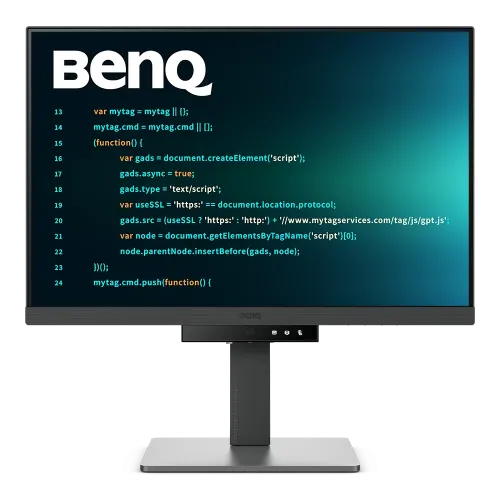
BenQ RD240Q programming monitor overview
The BenQ RD240Q is a 24.1-inch programming monitor built around a WQXGA IPS panel. Its 2560 × 1600 resolution and 16:10 shape provide a taller desktop than a common 16:9 display of similar diagonal size. BenQ lists a 60Hz refresh rate, 5ms grey-to-grey response time, 300-nit typical brightness, HDR10 and 95% P3 color gamut. The model adds coding-oriented picture modes, ePaper, a matte screen surface and a set of eye-comfort functions. USB-C supports video through DisplayPort Alt Mode, data and up to 90W Power Delivery. The monitor also has HDMI and DisplayPort inputs, USB downstream ports, a USB-C MST output, built-in speakers and an adjustable stand. This product is aimed at reading, writing, coding and general desktop work; its specifications should be compared with the exact needs of gaming, HDR grading or other specialist workflows.
WQXGA resolution and tall workspace
The panel resolves 2560 × 1600 pixels, which BenQ identifies as WQXGA. With a 16:10 aspect ratio and 125 pixels per inch, it provides additional vertical workspace for code editors, terminal windows, spreadsheets, long documents and web pages. The practical number of visible lines depends on operating-system scaling, application layout, font size and viewing distance. IPS technology and a listed 178-degree horizontal and vertical viewing angle support a broad viewing position. A 24.1-inch screen occupies less desk space than larger monitors, while its pixel density keeps the image detailed at typical desktop distances. WQXGA is not 4K UHD; people who need a larger canvas or native 4K review should compare higher-resolution and larger-screen alternatives before buying.
Coding modes and ePaper
BenQ lists Coding Dark Theme and Coding Light Theme picture modes, alongside ePaper, M-book, User, HDR and Cinema modes. These selectable modes provide different display treatments for programming, text reading, compatible Apple notebook workflows and media. ePaper is intended as a text-focused presentation option and should not be understood as an electronic ink panel. Coding modes can help establish a preferred contrast and color presentation, but comfort remains personal: text size, screen distance, room lighting, brightness and breaks all matter. Users can adjust the monitor to suit their workspace and can return to other picture modes when switching from code to video, photography or other content. The listed 300-nit brightness is typical rather than a guarantee that every image mode reaches that level.
Panel, refresh rate and color
The official specification identifies an IPS panel, 60Hz refresh rate, 5ms GTG response time, 1000:1 native contrast and 1.07 billion display colors. BenQ lists 95% P3 color gamut and HDR10 support. These values describe the panel’s published capabilities; the resulting image also depends on source content, selected mode, color management and host output settings. A 60Hz panel suits ordinary programming, browsing and office work but does not provide the high refresh rates sought for competitive gaming. HDR10 compatibility does not by itself establish reference HDR performance. The listed typical brightness is 300 nits, and the official specification does not identify local dimming or a high-brightness mastering capability. For color-critical or HDR production, check the required standards and compare them against the complete manufacturer data rather than relying on an HDR badge alone.
USB-C laptop connection and power
The upstream USB-C connection supports DisplayPort Alt Mode, data and up to 90W Power Delivery. A compatible laptop can therefore send a display signal, exchange USB data and receive power over one cable. The computer must support video output on its USB-C port, and 90W must be sufficient for the intended charging conditions. High-performance laptops may draw more power during demanding workloads and could still need their own power adapter. The monitor also supports USB-C MST output for compatible daisy-chain setups. USB-C cables differ in their data, video and power capabilities, so use a suitable cable and verify the display mode in the computer’s settings. One-cable convenience depends on compatibility; the USB-C connector shape alone does not guarantee video output or the full 90W function.
Video inputs, hub ports and audio
BenQ lists one HDMI 2.0 input and one DisplayPort 1.4 input in addition to USB-C. The downstream connectivity consists of three USB-A Gen 1 ports rated at 5Gbps and 4.5W charging each, plus one USB-C Gen 1 downstream port rated at 5Gbps and 7.5W charging. A separate USB-C output supports MST daisy chaining. The specification also lists a headphone jack and two built-in 2W speakers. These speakers can handle basic desktop audio, while headphones or external speakers may be preferable for richer sound or a larger room. The downstream USB ports are intended for peripherals and limited charging, not as a replacement for the upstream USB-C laptop power delivery. Connect the upstream cable when using the monitor hub, then check that the connected keyboard, mouse or storage device is recognized by the computer.
MST daisy chaining and compatibility
The RD240Q specification lists USB-C out with MST daisy-chain technology. This can allow a compatible host connection to pass a display signal onward to another compatible monitor, reducing the number of direct cables running back to the computer. The complete chain depends on the host graphics hardware, operating-system support, USB-C/DisplayPort capabilities, cable specification, second display and desired resolution or refresh rate. Verify these details before planning a multi-monitor setup. The official RD240Q specification reviewed here does not list a KVM switch, so the USB hub and MST output should not be represented as computer-switching functionality. Users who need a shared keyboard-and-mouse KVM workflow should check the manufacturer’s exact feature list or use a separate compatible KVM device.
Eye care and everyday comfort
BenQ lists flicker-free technology, Brightness Intelligence Gen 2, Low Blue Light Plus, Color Weakness mode, ePaper, Eye Reminder and Night Hours Protection. The matte display surface can reduce the prominence of reflections compared with a glossy finish, although no screen coating removes every reflection. These features provide selectable options for different viewing preferences; they do not guarantee that every user will avoid eye fatigue. Set brightness to a comfortable level for the room, use readable text scaling, position the monitor to limit glare and take regular breaks during long sessions. The stand’s 110mm height adjustment, tilt, swivel and pivot help place the display. For a portrait coding setup, check desk clearance and cable slack before rotating the screen.
Stand, portrait mode and dimensions
The stand supports tilt from −5° to +20°, swivel 15° left and right, 90° pivot and 110mm height adjustment. The monitor also accepts a 100 × 100mm VESA mounting pattern. BenQ lists landscape dimensions with the stand as 533.6mm wide, 412.1–522.1mm high and 228.6mm deep. In portrait orientation it lists 620.8 × 355.6 × 228.6mm, while the monitor without the base measures 533.6 × 355.6 × 71.3mm. Listed net weight is 7.6kg with the stand and 5.0kg without the base. Check a desk arm’s weight rating and VESA fit before installation. Leave room for the base and attached cables, especially when using pivot or swivel, and confirm the screen does not contact a shelf or wall during movement.
Power, speakers and software
The display uses a built-in power supply and supports 100–240V input. BenQ lists 20W normal consumption, 178W maximum and less than 0.5W in sleep mode; actual draw varies with brightness, connected devices and operating state. The two 2W speakers and headphone jack provide basic audio options for a compact workstation. BenQ lists Display Pilot 2 and Display Quickit software, as well as Auto Pivot. Utilities can depend on operating-system version and may change over time, so obtain downloads and firmware from the official RD240Q support page. The specification also lists Energy Star 8.0 and EPEAT Bronze. These details help users assess setup and energy context but should not be treated as a prediction of an individual electricity bill or a substitute for current certification documentation.
Price and warranty in Bangladesh
A market snapshot taken on 6 November 2026 found public Bangladesh retail references around ৳53,999 to ৳58,000 for the BenQ RD240Q. Seller price, availability, delivery and warranty terms can change, and a listed product may be temporarily unavailable or use a different offer. These references provide market context only; they are not a BiponiBD store offer. The existing catalog MSRP of ৳55,500 and the catalog’s three-year warranty statement are retained. Before ordering, confirm the exact RD240Q model, current payable price, physical stock, warranty issuer, invoice requirements, service location and written coverage. Also ask which signal cables are included, since BenQ notes that cable contents may vary by region. Save the invoice and serial number for any warranty claim.
Strengths and trade-offs
The RD240Q’s key strengths are its tall 16:10 WQXGA workspace, programming modes, ePaper option, USB-C with up to 90W power delivery and adjustable portrait-capable stand. Its MST output and USB hub can contribute to a tidy compatible workstation. Trade-offs include a 60Hz refresh rate, 300-nit typical brightness, conventional 1000:1 contrast and a 24.1-inch diagonal that is smaller than larger desk monitors. HDR10 support should be read alongside those brightness and contrast ratings. USB-C charging and MST require compatible hardware, and downstream USB power is limited. The official specification does not establish KVM support, so users who need switching between multiple computers should plan for separate equipment. Considering these constraints against the intended workload makes the listing more useful than relying on a single resolution or feature label.
Setup and purchase checklist
Before purchase, check that the label and invoice identify BenQ RD240Q, then confirm the current local price, stock and written warranty conditions. For USB-C video, verify the laptop supports DisplayPort Alt Mode; for single-cable charging, verify its power demand fits within the monitor’s 90W delivery rating. For MST, confirm support in the computer, cable and secondary monitor. After setup, select 2560 × 1600 and 60Hz if supported, attach the upstream USB connection for hub functions, and choose the coding or ePaper mode that suits the task. Adjust the stand for viewing height and angle, and check clearance before portrait rotation. Use the official manual and support downloads for firmware and utilities. If you need KVM, high refresh gaming, native 4K or reference HDR, compare those requirements separately because they are not promised by this model’s listed specifications.