Model overview
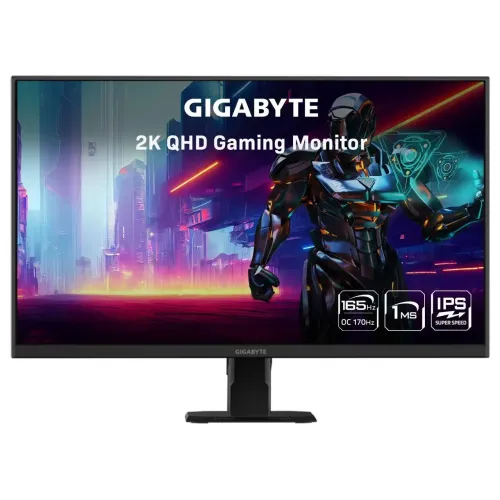
GIGABYTE GS27Q is a flat 27-inch gaming monitor with a Super Speed IPS panel and native 2560 × 1440 QHD resolution. It targets players and desktop users who want a faster refresh experience while keeping the extra detail of a 1440p image. The exact model suffix matters: other similarly named GIGABYTE monitors can use different panels, refresh ceilings, HDR ratings, stands or power figures. Check that the product label reads GS27Q before comparing specifications or warranty terms. This listing uses GIGABYTE’s own model-specific specification page and its GS27Q manual.
Resolution and workspace
The panel’s native format is 2560 × 1440 in a 16:9 aspect ratio. At 27 inches, QHD provides more pixels than Full HD for game scenes, documents, editing timelines and side-by-side windows. Run the source at native resolution for sharp text and clean scaling. A lower output resolution may still display, but it can appear softer depending on scaling. The viewing area is 596.74 × 335.66mm and pixel pitch is 0.2331mm horizontally and vertically according to GIGABYTE. These dimensions describe the active display area, not the outer chassis.
Refresh rate and overclock
GIGABYTE lists a maximum refresh rate of 165Hz with an optional overclocked mode up to 170Hz. The key-features page describes QHD with 165Hz (OC 170Hz), and the official specification table repeats 165Hz/OC 170Hz. The overclock is optional and depends on the monitor menu, graphics source, connection and stable signal. Enable it only if the system offers the supported mode and the image remains stable. A headline saying only “170Hz” can hide the default-versus-overclock distinction, so this description keeps both values explicit. The monitor cannot create extra frames if the system renders fewer.
Panel and viewing angles
The manufacturer identifies the panel as 27-inch SS IPS and lists 178-degree horizontal and vertical viewing angles. This supports a broad viewing area for a single user or a second person looking from the side. The display surface is non-glare. GIGABYTE publishes 16.7 million display colors and 100% sRGB color saturation. Color saturation is the manufacturer’s term; it does not establish measured gamut coverage or color accuracy. For photo, video or print work where matching colors is critical, use a calibrated workflow and independent measurements rather than treating saturation percentage as proof of precision.
Brightness, contrast and HDR Ready
The official sheet lists typical brightness of 300 cd/m² and a typical contrast ratio of 1,000:1. HDR Support is described as HDR Ready. That wording indicates the manufacturer’s designation, but the cited GS27Q specification does not list a VESA DisplayHDR certification tier or local-dimming system. Do not assume HDR Ready means the same peak brightness or contrast behavior as a certified high-dynamic-range panel. For everyday use, adjust brightness to suit the room and choose a sensible picture mode. HDR playback also depends on the application, operating system, graphics card and selected display settings.
Motion response and MPRT
GIGABYTE specifies a 1ms MPRT response time. MPRT is a motion-picture response measurement; it should not be rewritten as a 1ms grey-to-grey pixel response. The fast refresh capability and motion-related features can make compatible games look clearer, especially when the source consistently delivers a high frame rate. Actual perceived blur depends on the game, frame rate, panel settings and viewer. If enabling motion-stabilizing options changes brightness or comfort, compare settings in the games you play and choose the balance that works for you.
Adaptive-Sync and variable refresh
The GS27Q key-features page states support for Adaptive-Sync technology. This feature can coordinate the display refresh with a compatible graphics source within supported limits, reducing tearing or uneven frame pacing in suitable games. GIGABYTE’s listed specification does not substantiate a formal NVIDIA G-SYNC certification for this exact model. A previous local “Yes” value for G-Sync was therefore removed. Compatibility depends on the GPU, driver, connection and monitor settings; enable the feature on both the monitor and source when available, then confirm behavior in the graphics control panel.
Gaming tools and OSD Sidekick
GIGABYTE lists OSD Sidekick, Aim Stabilizer, Black Equalizer, Crosshair, Timer and PiP/PbP as unique features. These options are intended to help adjust monitor settings, visibility or screen layout. The manufacturer notes that OSD Sidekick is integrated in GIGABYTE Control Center and requires a PC-to-monitor HDMI or DisplayPort connection. Crosshair and timer overlays are user interface options, not game performance upgrades. Picture-in-picture and picture-by-picture functions can help organize multiple sources, but source combinations and layout controls should be checked in the on-screen menu.
Ports and input planning
The official specification lists two HDMI 2.0 inputs, one DisplayPort 1.4 input and one earphone jack. A DisplayPort cable is listed among the accessories. To use QHD at the highest supported refresh setting, select the DisplayPort connection and verify the available mode in the graphics driver and monitor menu. HDMI remains useful for a second PC or console, but supported refresh can differ by source and resolution. Cable quality, adapters, docks and graphics hardware may limit available bandwidth. The product specification does not list a USB hub or built-in speakers.
Audio and external devices
A single headphone or earphone jack is listed for audio output, while the built-in speaker field is marked N/A. Plan to use headphones, powered speakers or another audio device if you need sound. The monitor is a display rather than a complete speaker system. Audio passed through from the connected source depends on device settings and cable routing. Check that the computer or console selects the monitor as its audio destination when using the earphone jack, and use a separate audio connection if your setup needs more outputs.
Stand, positioning and mounting
The included stand supports tilt from -5° to +20°. The official specification says there is no swivel, pivot or height adjustment. Position the screen at a comfortable height with a riser or ergonomic desk arrangement if needed. The monitor supports a 100 × 100mm VESA wall mount and includes a Kensington lock point. Before using an arm or wall bracket, verify the mount’s weight rating and correct fasteners. A VESA-compatible mounting option can provide height adjustment that the included stand lacks, but the bracket is not listed as a supplied accessory.
Dimensions and desk fit
With the stand, GIGABYTE lists dimensions of 619 × 447 × 172mm; without it, the chassis measures 619 × 365.5 × 50.2mm. The box dimensions are 740 × 156 × 500mm. Measure desk width and depth, nearby shelves and cable clearance before installation. The stand uses desk space in front of and behind the panel, and tilt adjustment requires enough room to move the screen. Packaging dimensions are useful for transport planning and should not be confused with the installed monitor footprint.
Weight and supplied accessories
The estimated net weight is 5.26kg with stand and 4.35kg without stand; estimated gross weight is 7.14kg. Actual weight can vary slightly, as the manufacturer notes. Listed accessories include a power cable, DisplayPort cable, quick-start guide and warranty card. Regional boxes can differ, so inspect the package and confirm the included items with the seller. Keep the packaging and purchase documentation for transport or warranty service, and check the serial number on the device against the invoice.
Power and operating conditions
The GS27Q has a built-in power board and accepts AC 100–240V at 50/60Hz. GIGABYTE specifies 33W power consumption under its stated CEC test condition, 0.5W power-saving mode and 0.3W power-off mode. Real draw can vary with settings and operating state. The manual gives an operating temperature range of 0°C to 40°C. Allow ventilation around the monitor and use the supplied power cable with an appropriate outlet. The 33W figure is not a universal constant for every brightness, refresh or usage combination.
Setup recommendations
Assemble the stand on a stable surface, connect the power cable and select HDMI or DisplayPort based on the source. Choose 2560 × 1440 in the operating system, then enable 165Hz or the optional 170Hz overclock from the monitor and graphics settings if available. Check for a stable image after changing modes. Use the on-screen display to adjust brightness, picture preset, Adaptive-Sync and game tools. If you connect multiple devices, label the inputs and test each one separately. Keep the monitor’s serial number and seller invoice available for support.
Warranty and Bangladesh purchase notes
The catalog record lists a three-year warranty and a reference MSRP of ৳37,500. These are catalog details rather than a current store offer; the warranty line came from retailer-derived data and should be confirmed with the seller. Ask who provides service, where the monitor can be serviced, whether the warranty covers dead pixels, and what proof of purchase is required. Confirm current availability and that the unit is GS27Q rather than GS27QA or another related model. A written invoice should state the exact model, warranty provider, term and return conditions.
Who should consider this monitor
The GS27Q may suit PC gamers who want a 27-inch QHD IPS panel, a 165Hz default refresh rate and an optional 170Hz overclock. Its adjustable tilt and VESA support provide basic positioning flexibility, while its game tools may appeal to users who like on-screen overlays and visibility controls. It can also work for productivity and general media viewing. Buyers who need a height-adjustable included stand, pivot or built-in speakers should plan an alternative setup. People seeking a guaranteed HDR certification or formally documented G-SYNC certification should compare models that explicitly list those credentials.
Limitations to weigh before ordering
The included stand offers tilt only, so users cannot raise, swivel or rotate the screen without a separate stand or monitor arm. Built-in speakers are not provided. The official specification describes HDR Ready rather than a named VESA DisplayHDR tier. The 170Hz setting is an optional overclock above the listed 165Hz maximum standard refresh. In addition, 100% sRGB is presented as color saturation and should not be read as color accuracy. Consider these points alongside the QHD panel, refresh rate, ports, desk space and warranty when deciding whether the GS27Q matches your setup.
Specification summary
Panel: 27-inch SS IPS; resolution 2560 × 1440 QHD; aspect ratio 16:9; active area 596.74 × 335.66mm; pixel pitch 0.2331mm. Refresh: 165Hz standard, optional OC 170Hz. Response: 1ms MPRT. Brightness: 300 cd/m² typical; contrast 1,000:1 typical. Color: 16.7 million, 100% sRGB color saturation. HDR: HDR Ready. Inputs: 2 × HDMI 2.0, 1 × DisplayPort 1.4, 1 × headphone jack. Stand: -5° to +20° tilt only. VESA: 100 × 100mm. Speakers: none listed. Power consumption: 33W under CEC test condition; standby 0.5W; power-off 0.3W.
Frequently asked buying details
The most important check is the exact GS27Q model identity because similarly named products can differ. The default refresh figure is 165Hz, with 170Hz available only as an optional overclock. The 1ms number is MPRT, not GtG. “HDR Ready” is the official designation and does not identify a VESA certification tier. Adaptive-Sync is listed, while official documentation reviewed here does not establish a G-SYNC certification. A three-year catalog warranty and ৳37,500 MSRP need current seller confirmation; neither should be mistaken for a live offer.